
Overview
Extended audio description narrates the visual content of a video for viewers who are blind or have low vision. Unlike standard audio description, which fits narration into natural pauses in the dialogue, extended audio description pauses the video wherever a longer description is needed and resumes when the narration ends.
Video Cloud generates an extended audio description as a separate described version of your video, with the pauses and narration built into its timeline. The Extended Audio Description plugin lets viewers switch between the original video and its described versions from the AD button on the player control bar.
Described versions are generated by the Audio Description feature in Video Cloud Studio. For details on generating audio descriptions, see Audio Description.
Requirements
- Brightcove Player 7.50.0 or newer. Players pinned to an older version must be updated to the latest version before the plugin can be added.
- Your account must be enabled for extended audio description generation. Contact your account manager if you are unsure.
- The video must have at least one described version. If it has none, the plugin does nothing.
How it works
When the player loads a video, the plugin checks whether the video has any described versions. If it finds at least one, the AD button (accessible name "AD Audio Descriptions") appears on the control bar. If the video has no described versions, the plugin does nothing and the button is not shown.
What the viewer sees depends on what audio description the video carries:
- If the extended audio description is the only audio description the video has, the AD button is an on/off toggle. One click switches to the described version, the next click switches back to the original.
- If the video also has standard audio description (a described audio track or a text description track), or more than one described version, the AD button opens the Audio Descriptions menu. Its Extended Audio Description section lists Off (the original video) and one entry per described version.
Because a described version is a separate video with its own, longer timeline, switching always starts the selected version from the beginning:
- If the video is playing when the viewer switches, the selected version starts playing immediately.
- If the video is paused when the viewer switches, the selected version loads paused at its poster image. The viewer presses Play to start it and bring back the control bar.
The AD button is fully keyboard accessible. Screen readers announce the toggle with its current state, and announce menu entries as a group of radio items.
iPhone
On iPhone, fullscreen video plays in the built-in iOS video player, which does not show the Brightcove Player control bar. Viewers cannot switch versions while in fullscreen on iPhone, so they should choose the version they want before entering fullscreen.
Known limitations
- Switching versions always restarts from the beginning. The player does not carry the current position across to the other version.
- Interactivity overlays are not shown on described versions.
- With client-side advertising (IMA3, FreeWheel), switching versions does not request new ads. With server-side ad insertion (SSAI), each switch starts a new ad session, which can include a pre-roll.
- Each switch between versions counts as a new video view in analytics.
- The AD button is hidden while the player is casting to a Chromecast device.
Implement using Studio
The easiest way to add the Extended Audio Description plugin to your player is with Video Cloud Studio.
- In Video Cloud Studio, navigate to the Players module.
- Open an existing player or create a new one.
- Expand the Plugins section on the Overview tab.
- Click Add Plugin and select Brightcove Plugin.
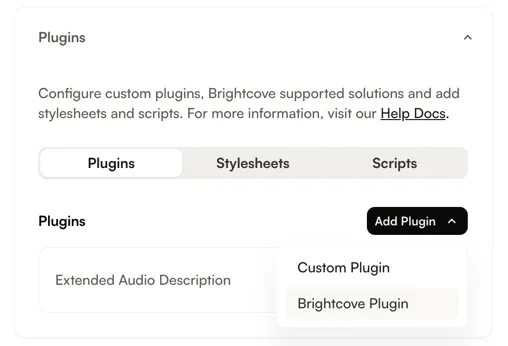
Add Plugin dropdown - From the Brightcove Plugin dropdown, select Extended Audio Description.
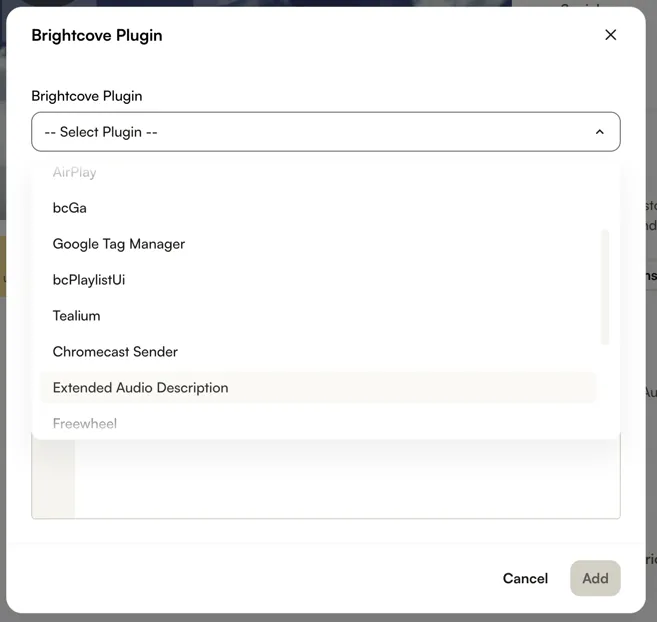
Selecting Extended Audio Description - Leave the Options (JSON) field empty. The plugin has no options.
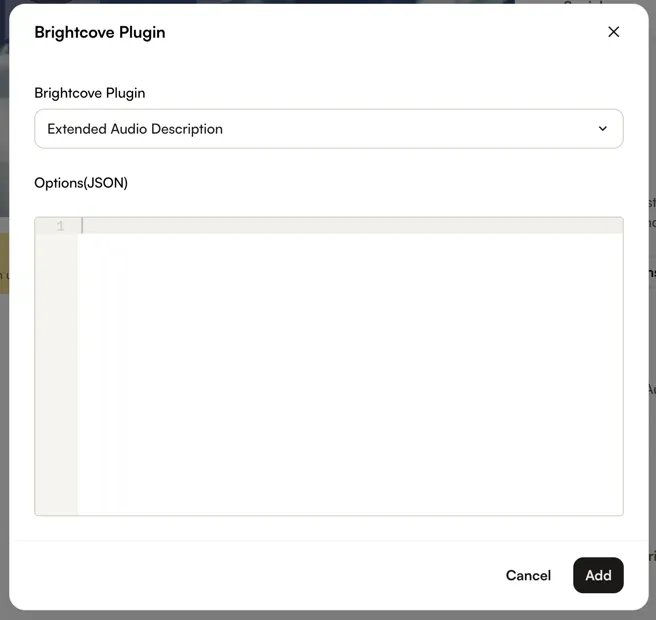
Extended Audio Description selected - Click Add.
- Publish your player by clicking Publish Changes.
Implement with the JSON editor
You can also add the plugin using the JSON editor. In the Players module, open the player you want to configure and expand the JSON Editor section on the Overview tab. Add the following entry to the plugins array, then publish the player:
"plugins": [
  {
    "name": "extendedAudioDescription",
    "is_packaged": true
  }
]
The same entry can be added with the Player Management API by updating the player configuration and publishing the player.
Changelog
The Extended Audio Description plugin is delivered as part of Brightcove Player. Notable changes are included in the Brightcove Player Release Notes.